Introduction
The JS7 - Profiles hold settings that are specific to a user account and that are controlled by the user.
- Profiles include a number of categories such as Preferences, Permissions etc.
- The Profile includes preferences such as language, time zone etc. that are described below.
Profile Page
The Profile page is accessible from the user menu of an account in the upper right hand corner of any JOC Cockpit view:

The Profile page offers a number of sub-views. The following section describes the Preferences sub-view.
Preferences
The Preferences sub-view allows configuration of the following settings:
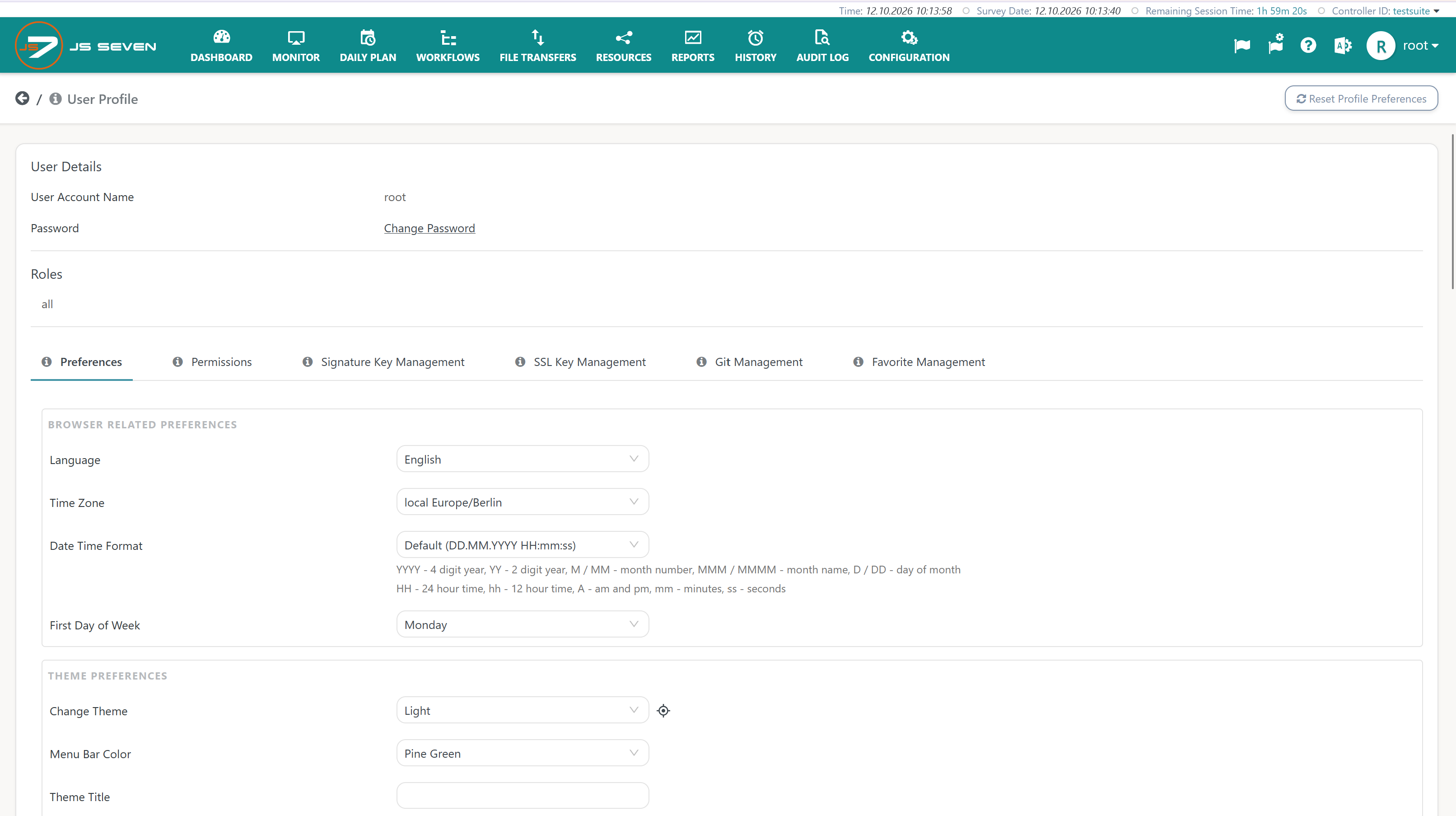
Explanation:
| Category | Setting | Default Value | Explanation |
|---|---|---|---|
| Browser related Preferences | Language | browser default | Specifies the language to be used for the JOC Cockpit GUI, see JS7 - Language Support. Initially the user browser's default language is used if this language is included in the JS7 supported languages. Otherwise the default language of English will be used. |
Time Zone | browser default | Specifies the time zone which any dates in the JOC Cockpit GUI are converted to, see JS7 - Time Zone Support. Initially the user browser's default time zone is used. Note that the selected time zone is used to initially populate the time zone of JS7 - Workflows, JS7 - Jobs and JS7 - Schedules. | |
Date Time Format | DD.MM.YYYY HH:mm:ss | Specifies the format used to display dates. | |
First Day of Week | Monday | For display of calendars user choose the first day of week. | |
| Theme Preferences | Change Theme | Light | JOC Cockpit offers a number of themes. Some themes provide a darker or brighter background, some provide high contrast for users with disabilities. |
Menu Bar Color | Default | The menu bar color can be chosen if the Light theme is active. Some users prefer to use different menu bar colors to indicate the environment when setting up separate JOC Cockpit instances and profiles for dev, test, prod. | |
Theme Title | Optionally a title can be added that is displayed in the left upper corner of each JOC Cockpit page. This can be used to indicate the purpose of the JOC Cockpit instance, for example, whether it is being operated for a dev, test or prod environment. | ||
| List Preferences | Max. number of History entries | 5000 | Specifies the max. number of entries displayed in the JS7 - History view and its sub-views. Higher values transfer more data from the JOC Cockpit to the user browser and will increase the client's CPU load. This setting offers a Group Limit button to apply the indicated value to any |
Max. number of Audit Log entries | 5000 | Specifies the max. number of entries displayed in the JS7 - Audit Log view. | |
Max. number of Notification entries | 5000 | Specifies the max. number of entries displayed in the JS7 - Monitor, chapter: Notifications view. | |
Max. number of Order Overview entries | 5000 | ||
Max. number of Daily Plan entries | 5000 | Specifies the max. number of entries displayed in the JS7 - Daily Plan view. | |
Max. number of Orders per Workflow | 5000 | Specifies the max. number of orders displayed in the execution view for JS7 - Workflows. | |
Max. number of File Transfer entries | 5000 | Specifies the max. number of entries displayed in the JS7 - File Transfer view. | |
Max. number of Orders per Resource Lock | 5000 | Specifies the max. number of entries displayed in the JS7 - Lock Instruction, chapter: Resource Locks View. | |
Max. number of Orders per Notice Board | 5000 | Specifies the max. number of entries displayed in the JS7 - Notice Boards, chapter: Execution View. | |
| Pagination Preferences | Max. number of entries per page | 1000 | Any list view performs paging, displaying, for example, 1500 entries in 15 pages with 100 entries on each page. Users can select the number of entries per page in steps of 10, 25, 50, 100 and the indicated maximum. Higher values result in a higher CPU load for the client's browser. |
Default number of entries per page | 25 | Any list view performs paging, displaying, for example, 1500 entries in 15 pages with 100 entries on each page. Users can select the number of entries per page in steps of 10, 25, 50, 100 and the indicated maximum. This setting specifies which step will be applied by default. | |
| Workflows View Preferences | Max. number of Order History entries per Workflow | 10 | Specifies the max. number of orders displayed with the Order History panel in the execution view for JS7 - Workflows. |
Max. number of Job History entries per Workflow | 10 | Specifies the max. number of orders displayed with the Task History panel in the execution view for JS7 - Workflows. | |
Max. number of Audit Log entries per Object | 10 | Specifies the max. number of entries displayed with the Audit Log panel in the execution view for JS7 - Workflows. | |
Max. number of instructions before/after Magnet | 3 | Specifies the number of instructions that are displayed for a magnetized order in its swimlane. The value is applied to the number of instructions before and after the instruction currently passed by the order. | |
Auto-magnetize orders by state | Specifies that orders will automatically be magnetized when entering one of the selected states, see JS7 - Workflows - Display Operations on Orders. | ||
Auto-magnetize child orders | Specifies that child orders will be magnetized when parent orders are magnetized, see JS7 - Workflows - Display Operations on Orders. | ||
| Inventory View Preferences | Max. number of Favorite entries | 10 | Limits the list of favorite entries, for example when assigning Agents to jobs. |
Show sub-folders and folder contents | Sub-folders and folder contents | The tree navigation in views offers a choice of what will be displayed when selecting a folder:
| |
Tab Size | 4 | Specifies the number of spaces that are used to display a tab in the Script Editor for jobs in the Configuration view. | |
Collapse list variables | false | Specifies if list variables declared with a workflow by default should be displayed in collapsed or expanded manor. | |
| Log View Preferences | Use time zone for log timestamps | checked | JS7 Agents can be operated in different time zones. This means that each Agent will create log timestamps corresponding to its time zone, for details see JS7 - Time Zone Support. This setting specifies whether timestamps in any log output are to be converted to the time zone specified in the Time Zone setting described above. Alternatively the original timestamp will be displayed. |
Number of lines in Log view | 7000 | Specifies the number of lines of log output that can be made available in the Log view depending on system resources such as CPU and memory for rendering. | |
Load number of next lines in Log view | 1000 | The Log view offers loading the indicated number of previous or next lines of log output. This considers that the overall Number of lines in Log view remains the same and that earlier or later log entries are dropped. | |
| View Preferences | Show Logs | New Window | Logs of Orders and Tasks can be viewed for example from the JS7 - Order History, chapter: Order Log View, JS7 - Task History, chapter: Task Log View etc. Users have a choice of how to view logs:
Note that any views displaying log output offer a download option for the output, using the |
Show Documentation | New Window | Users have a choice of how to display JS7 - User Documentation:
| |
Show View | As List | A number of views such as the JS7 - Workflows view allow entries to be displayed in a list or as cards. Users can switch the display mode using the icons available in the right upper corner of the relevant view:
The | |
Show Orders Overview | As List | The JS7 - Orders, chapter: Orders Overview allows individual entries to be displayed in a list or as cards. In addition, a bulk display mode is available that displays aggregate numbers instead of individual Orders.
The | |
Default dependency handling | Required | Specifies the default how depencencies will be considered for inventory operations:
| |
Current Controller | true | If the JOC Cockpit is connected to a number of Controllers then most views offer the option of displaying information for the currently selected Controller or for all Controllers. For example, the JS7 - History view allows history entries to be displayed for the current Controller or for all connected Controllers. The Current Controller option specifies whether the data shown in a view should be limited to the current Controller by default. Users have the option of modifying this setting for each view. | |
Show Files immediately in File Transfer view | false | The JS7 - File Transfer view displays current and past transfers. Users have a choice of displaying files subject to transfer when opening this view or to only display files when selecting display details in this view. | |
| User Experience Preferences | Show more options | false | The setting specifies if by default fewer or more options will be offered from pop-up windows for user actions. |
Tooltip delay | Short delay (0.2s) | The setting rules tooltip visibility:
| |
Enable Glossary for Tooltips | true | When enabled, tooltips will display links to glossary items which is helpful for users who are new to JS7. Experienced users might prefer fewer links in tooltips. | |
| Global Preferences | Enable Reasons for Audit Log | false | The JS7 - Audit Log keeps track of changes to objects, for example when a workflow is stored, is deployed, when an order is added etc. Users can be asked to add a reason why they perform such an operation. Reasons can be selected from a list and can be added individually. This setting works as a voluntary option for individual users. However, JS7 administrators can enforce use of reasons when modifying objects as described in JS7 - Settings, chapter: JOC Cockpit Settings. |
License Warning acknowledged | false | Refers to use of subscription licences that are typically limited to one year. Before license expiration, related warnings will be displayed in JOC Cockpit. Users can opt to suppress related license expiration warnings. | |
| Features | Enable Context Help | true | The setting enables Context Help that is available from an (i) icon in the title of pages, sub-views and pop-up windows. |
Enable Context Help Videos | true | The setting enables Context Help Videos that are available from an icon in the title of pages, sub-views and pop-up windows. The videos will access an external web site and require internet access. | |
Enable Tagging | false | Specifies if the Tagging feature is active. When enabled, then the navigation panel in a number of view is added a section for Tag navigation. | |
| Display of Workflow | Layout | indented | JOC Cockpit offers the following layouts:
Users can combine both layouts with vertical and horizontal orientation. For example, deeply nested Fork Instructions are best displayed from Indented Layout with horizontal orientation. |
Orientation | vertical | Offers switching display of Workflows to vertical or horizontal presentation. | |
Spacing between vertical instructions | 100% | Specifies the spacing between vertical Workflow instructions. | |
Spacing between horizontal instructions | 100% | Specifies the spacing between horizontal Workflow instructions. | |
Round Edges for Connections | true | The setting flattens edges on display of Workflow instructions, for example of Jobs. |



Overview
Content Tools